
Appearance
Shipment
If the user wants to send goods to fulfill the Purchase Order received, then the user can create a document in the Shipment menu.
There are 3 ways to make a shipment document, as follows:
From Purchase Order Document
Users can create a shipment document from a purchase order document.
- Go to Purchase Order Guide
From Import Template
To make a Shipment document, the user can use the template that has been provided. 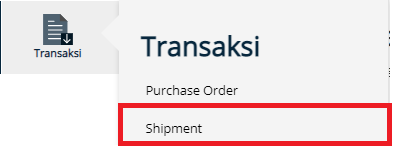
- Click Transaction Menu
- Choose Shipment

- Click Template button
- Complete the data for the sheet Shipment, Detail, and Document
- The id on the Shipment sheet is used to link with Details and Documents
- To fill in Port use the Port Code (ex: IDTPP for Tanjung Priok)
- To fill in Date use the format: dd/mm/yyyy or yyyy-mm-dd
- After all the TemplateShipment.xlsx data has been completed, it can be imported using the Import button.
- After the import is complete, the data in the template will be formed into a shipment document, and the status is Draft
- To view the document data, the user can click the desired number
- If all data has been completed, the user can press the Submit button
- When it is finished, the Shipment document will be in the status of Ready
- After the user internal has processed the Shipment document and has made the PIB document, the status of the Shipment document will be Converted to PIB
From Add New Button
To perform manual document creation, users can use the Add New button for document creation.
- Click Transaction Menu
- Choose Shipment

- Click Create New
- After the user press the Create New button, the user will be asked to complete the data that must be filled with the symbol *
- After completing the required data, the user can press the Save button
- After that, 5 new tabs will appear, namely Purchase Order, Goods, and Vendor Documents, Packing, & Container
- On the Purchase Order tab user can use the Get All Outstanding button, to send all Purchase Orders with New status, or use the Choose Purchase Order button, with the Choose Purchase Order button the user can choose whether to ship based on Purchase Oder document or by per unit.
- After all data is completed, the user can press Submit button to complete the document Shipment
- When it is finished, the Shipment document will be in the status of Ready
- After the buyer company has processed the Shipment document and has made the PIB document, the status of the Shipment document will be Converted to PIB